Ask us on the help form and we’ll reply by email.
Jobs and visits
A job is the work you do for a client; a visit is one trip on the calendar. Create a job on the web or the phone, add visits, and see what each job and visit status means.
Applies to: Owners, Admins, on the web and the phone app. Last checked 2026-10-17.
A job is a piece of work for one client: a water heater install, a kitchen remodel, a weekly lawn service. It holds the work’s visits, estimates, invoices, time, expenses, mileage, notes and photos.
A visit is one trip to do the work, with a date and usually a time. A job can have no visits yet, one visit, several, or a repeating schedule (see Repeating jobs). A job doesn’t need a date. You can create it now and schedule it later.
Lead or Open
When you create a job, pick its type:
- Lead: work you might get, such as a quote request. A repeating lead books no visits until it becomes open work.
- Open: work you’re doing.
To turn a lead into work, open it and choose Convert to Open Job.
On the web
- Open Jobs and choose New Job.
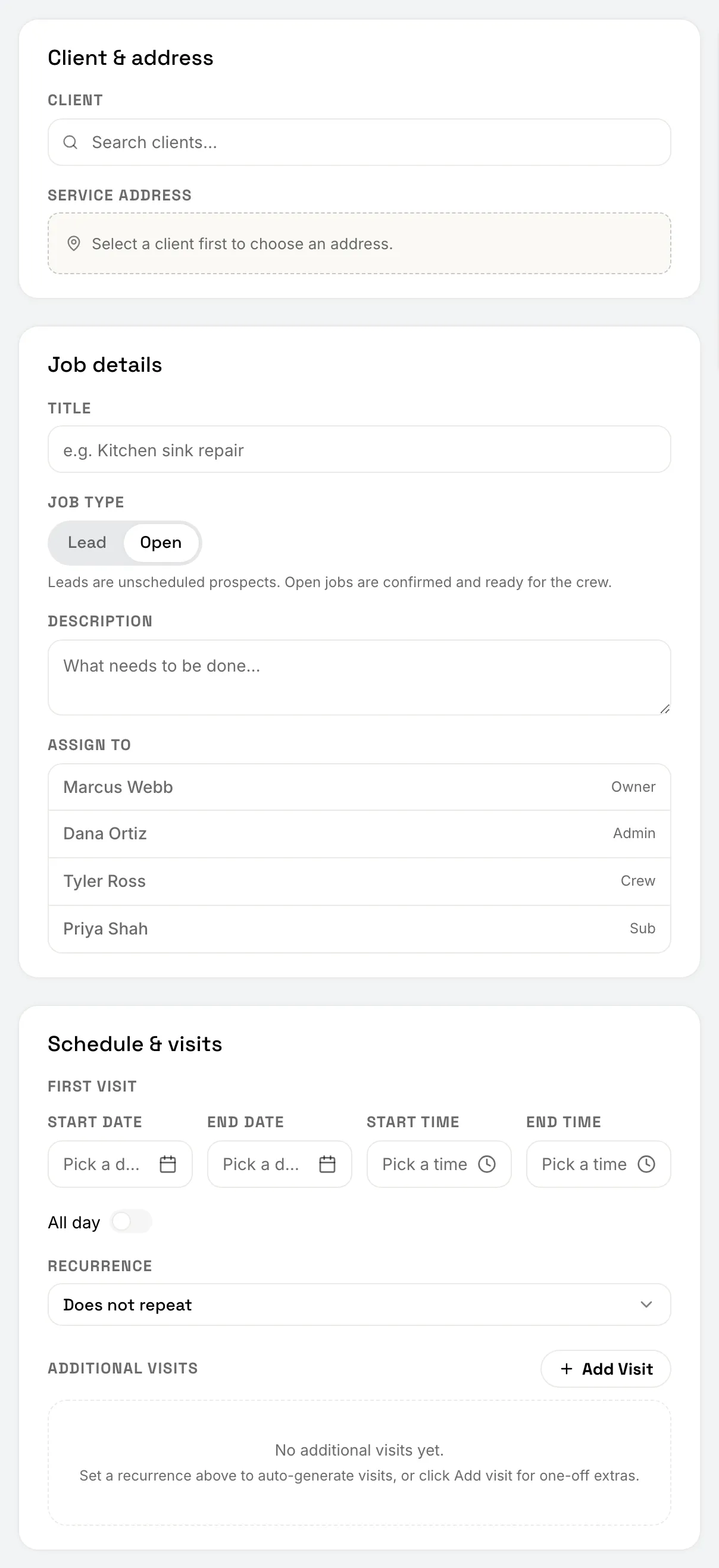
- Under Client & address, pick the client and the service address.
- Under Job details, give the job a title, pick Lead or Open, and add a description. If you have a team, choose who to assign.
- Under Schedule & visits, set the first visit’s date and time, or leave them empty. Turn on All day for a visit with no set time. Use Recurrence to make the job repeat, and Add Visit for any extra visits.
- Choose Create Job.
To add a visit later, open the job and choose Add Visit on the Visits card.
On the phone
- Open Jobs and tap New Job. You can also tap More, then New Job.
- Pick the client. Then fill in the title, the job type, a description and the address. Choose “Skip — no address needed” if there isn’t one.
- Tap or drag on the calendar to set the time, then tap Confirm Schedule. To leave the job unscheduled, tap Skip Scheduling.
- Check the summary and tap Create Job.
You can create a job on the phone with no signal. It’s saved on the phone and sent up when the signal comes back. Choosing the crew needs a connection.
To add a visit later, open the job and tap Add Visit in the Visits section.
Job statuses
- Lead: not yet work.
- Open: work in progress or scheduled.
- Complete: the work is done.
- Canceled: the work is off. Its history, notes and documents stay, and you can reopen it.
Visit statuses
- Scheduled: on the calendar, not started.
- In progress: under way.
- Complete: done.
- Skipped: you didn’t go this time, but the work still stands.
- Canceled: the appointment is off.
On the web: change a visit’s status
A visit’s menu on the Visits card has Edit Visit, Mark Complete, Skip, Cancel Visit, Reset to Scheduled and Delete Visit. Reset to Scheduled undoes a skip or a cancel.
Deleting a job
Delete Job removes the job and its visits for good. A job with time entries or an invoice on it can’t be deleted. Void or delete the invoices and delete the time entries first, or choose Cancel Job instead, which keeps everything.
Still stuck? Contact us.