Ask us on the help form and we’ll reply by email.
Repeating jobs
Make a job repeat daily, weekly, monthly or yearly, change or pause its schedule later, move one visit or the rest of the series, and let past visits complete themselves.
Applies to: Owners, Admins, on the web and the phone app. Last checked 2026-10-17.
A repeating job puts a visit on the calendar on a regular schedule, such as every Tuesday or the first Monday of each month. FieldFlow books visits up to 90 days ahead and adds later ones as their dates come within 90 days.
Choose how it repeats
When you create a job, pick a repeat for its first visit:
- Daily
- Weekly on that weekday
- Monthly on that day of the month, or on that weekday of the month (for example, the second Tuesday)
- Annually on that date
- Custom…, for things like every 2 weeks on Monday and Thursday
Then choose when it ends: Never, After a number of visits, or Until a date.
On the web
When you create the job, use Recurrence under Schedule & visits on the New Job form. It starts at Does not repeat.
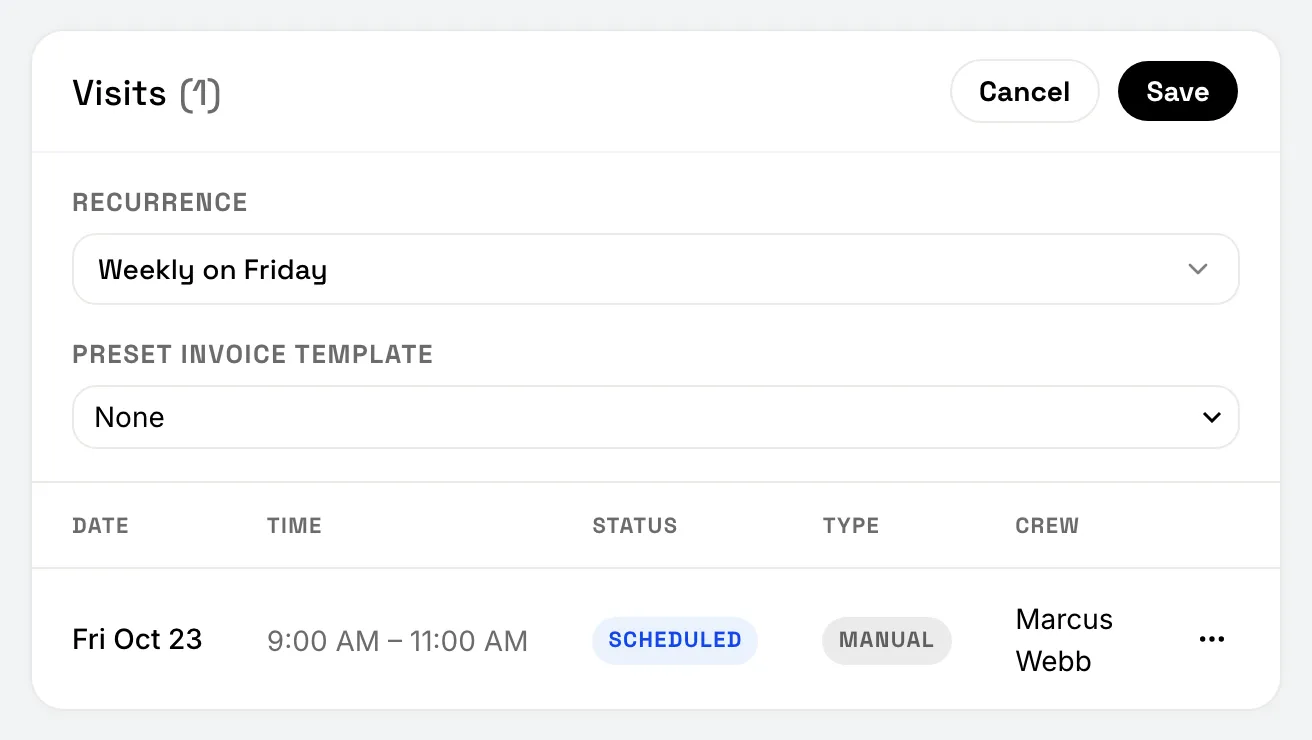
To change it later, open the job. On the Visits card, choose the schedule button (it reads Recurring or Non-recurring). Change Recurrence, then Save. Before anything changes, FieldFlow shows you which visits the change adds and removes.
To move one visit, use Edit Visit on it. If you change its date or time, FieldFlow asks whether to move Only this visit, or This and following.
On the phone
When you create the job, pick a time on the calendar step, then switch the tray from One-Off to Recurring and choose the repeat.
To change it later, open the job, tap the More menu, and choose Change Repeat… (or Make Recurring… on a job that doesn’t repeat yet). You’ll see what the change does before you confirm. This needs a connection.
To move visits, edit the job and change its date or time. FieldFlow asks whether to move This Visit Only, or This & Future Visits.
What a schedule change keeps
A change never touches today. The new schedule starts after today, or on the job’s first date if that’s later.
A change only removes upcoming visits nobody has touched. A visit you changed, added a note to, logged work on, put a document on, gave its own crew or sent a reminder for stays on the calendar. Cancel those by hand if you need to.
Pause and resume
Choose Pause Recurring… to stop new visits being added. The schedule and any end date are saved. You can choose Keep Upcoming Visits or Delete Upcoming Visits. Visits you’ve changed are always kept.
Choose Resume Recurring to pick the schedule back up. Resume works on an open job, so reopen a completed or canceled job first.
On the web: pause and resume
Pause and resume are in Recurrence in the schedule settings. They take effect when you save.
On the phone: pause and resume
Pause and resume are in the job’s More menu.
Complete past visits automatically
A repeating job has a switch on its Visits section: Automatically mark past visits as complete. It’s off to start with. When it’s on, FieldFlow marks a scheduled visit complete once its day has passed. A visit whose status someone set by hand, for example by resetting it to scheduled, is left alone. If the job has a preset invoice template, each visit completed this way creates a draft invoice, just as completing it yourself does.
A repeating job stays open when its visits are completed. Complete it yourself when the work ends (see Complete visits and jobs).
Still stuck? Contact us.