Ask us on the help form and we’ll reply by email.
The calendar
See your visits by day, week or month, filter by team member, preview or complete a visit in place, drag to reschedule, and create a job straight from an empty time slot.
Applies to: Owners, Admins, on the web and the phone app. Last checked 2026-10-17.
The calendar shows your jobs’ visits, each on its day and at its time. Owners and admins see the whole team’s calendar. Crew and subcontractors see their own visits in the crew app.
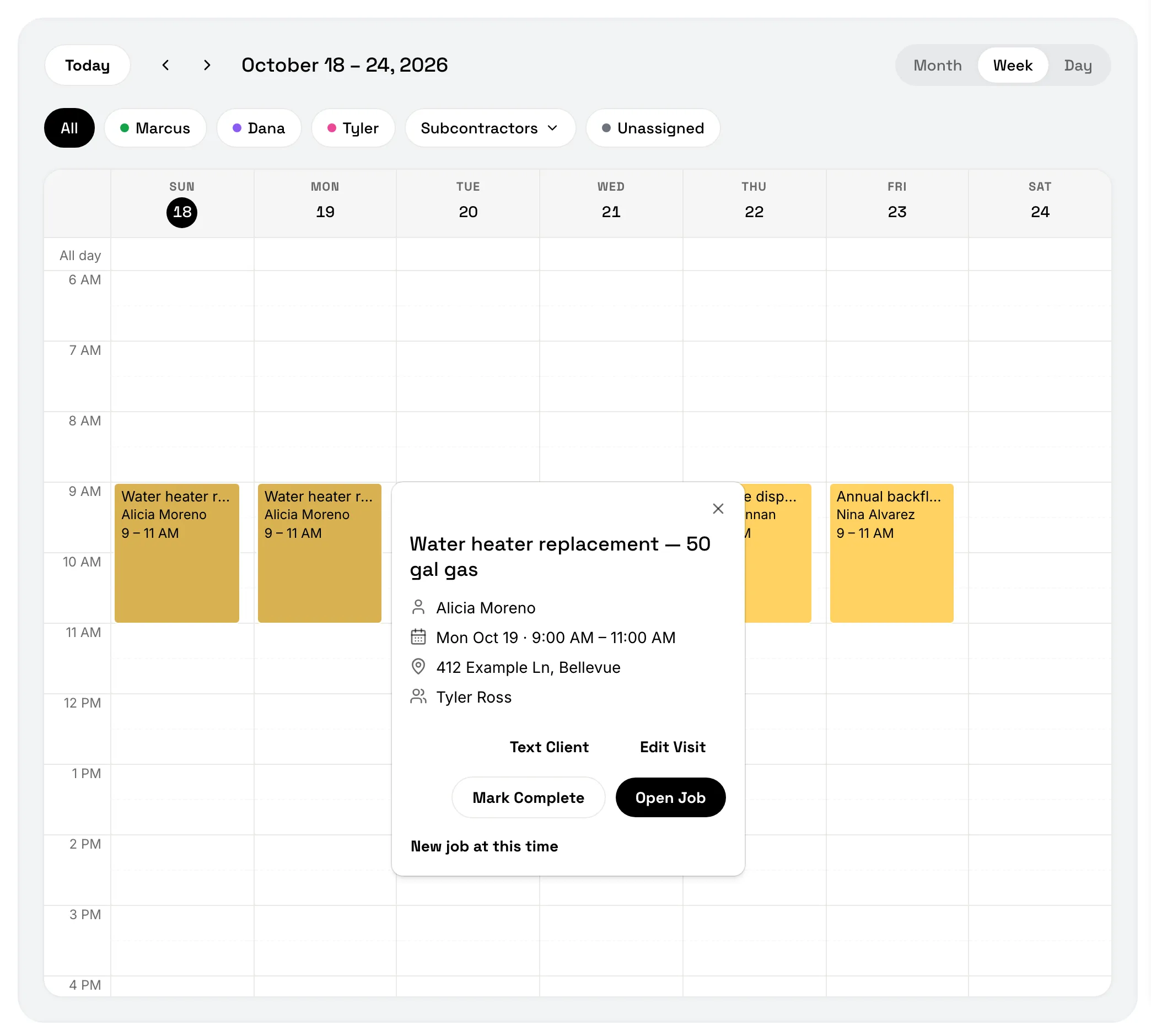
Views and filters
Switch between Day, Week and Month, and use Today to jump back to today. On a phone there’s also a 3 Day view.
Above the calendar, team chips filter the visits: All, one chip per team member, and a Subcontractors chip if you work with subs.
Preview a visit
Click or tap a visit to see its details without leaving the calendar. From there you can:
- Open Job to go to the job.
- Mark Complete to complete the visit.
- Edit Visit to change its date or time. On the web you can change its crew here too.
- New job at this time to start a new job in the same slot.
Create a job from the calendar
Click or tap an empty time slot, or drag across a few hours, to start a job right there. Pick the client and add a title, then save. Choose More options to finish it on the full New Job form instead, for things like a description or a different address.
On the web
- In Day view, select two or more team members to split the day into one column per person. The Unassigned chip shows visits with no one on them.
- Drag a visit to a new time or day to move it. A message confirms the move, with Undo if you dropped it in the wrong place. Dragging moves that one visit only.
On the phone
- Press and drag a visit to a new time, then tap Reschedule Visit to confirm.
- Pinch to zoom the day in or out.
- When creating a job from an empty slot, tap Create to save it.
Still stuck? Contact us.