Ask us on the help form and we’ll reply by email.
Add a client
Add a client by hand on the web or the phone. Only a first name is required; add contact details, an address, tags and notes as you go.
Applies to: Owners, Admins, on the web and the phone app. Last checked 2026-10-17.
Every job, visit, estimate and invoice belongs to a client, so a client is the first thing to add. Owners and admins can add clients.
On the web
- Open Clients in the sidebar.
- Choose New Client.
- Fill in what you know, then choose Save.
On the phone
- Tap More, then Clients. You can also tap More, then New Client.
- Tap New Client.
- Fill in what you know, then tap Save Client.
You can add a client on the phone with no signal. It’s saved on the phone and sent up when the signal comes back.
What you can fill in
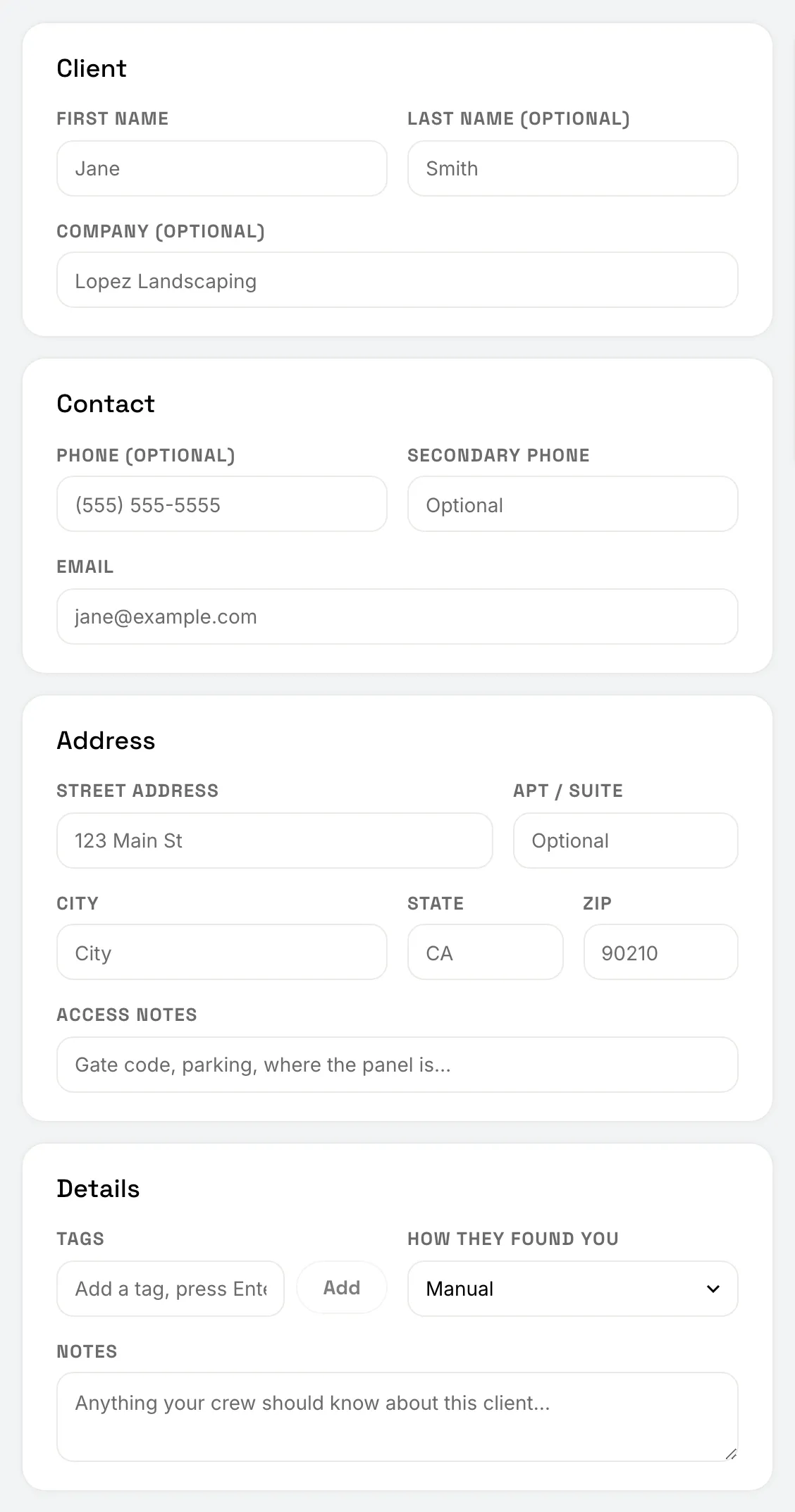
Only the first name is required. Everything else is optional:
- Name and company: a last name, or a company name for a business client.
- Contact: a phone number, a second phone number and an email.
- Address: street, apartment or suite, city, state and ZIP, plus access notes such as a gate code. US addresses only. If you add a street, add the city, state and ZIP too.
- Tags: short labels you can add more than one of.
- How they found you: where the client came from (Source on the phone).
- Notes: anything about the client.
To learn what your crew can see of this, read Client addresses and notes.
If the client might already exist
When the phone number or email matches a client you already have, FieldFlow asks before creating a second one. See Duplicate clients.
Still stuck? Contact us.