Ask us on the help form and we’ll reply by email.
Client addresses and notes
Give a client more than one address, keep access notes like gate codes on each, and write client notes. See which of these your crew and subcontractors can see.
Applies to: Owners, Admins, on the web and the phone app. Last checked 2026-10-17.
A client can have several addresses, such as a home and a rental property. Each address can carry access notes. The client also has one set of notes.
Access notes
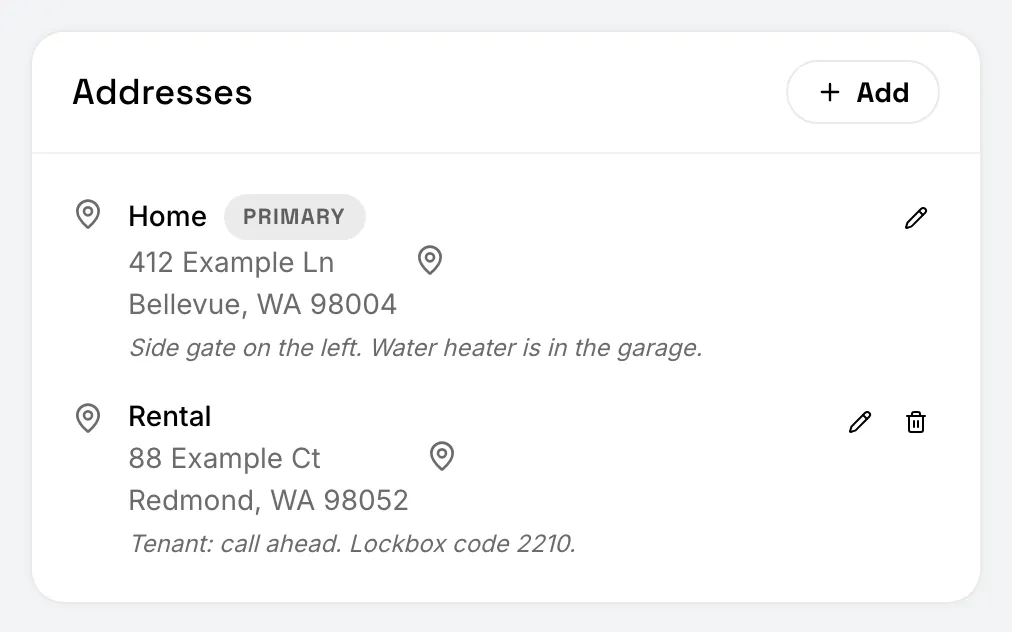
Access notes belong to one address: a gate code, where to park, where the panel is. They show under that address on the client.
Crew and subcontractors never see access notes. If the crew needs the gate code for a visit, put it in the client notes or tell them directly.
Client notes
Client notes are for anything about the client as a whole. Crew members on the client’s jobs can read them (see below).
On the web
To add an address:
- Open the client.
- In the Addresses card, choose Add.
- Give the address a label (Home, Office, and so on), fill in the street, city, state and ZIP, and add any access notes.
- Choose Add Address.
To change an address, use the pencil next to it. To remove one, use the trash can. The primary address can’t be removed.
To write client notes, use Add Note or Edit Note in the Notes card.
On the phone
- Open the client.
- Tap + next to Addresses to add an address.
- Tap Edit next to Notes to write or change the client notes.
What your crew sees
On a job they’re assigned to, crew members see the client’s name, phone number and the job’s address. Crew members also see the client notes. Subcontractors don’t see client notes, since they work for their own business. Neither crew nor subcontractors see access notes or the client’s other jobs.
Still stuck? Contact us.