Ask us on the help form and we’ll reply by email.
Automatic invoice and estimate reminders
Turn on automatic email reminders for unpaid invoices and unanswered estimates, choose which steps send, and switch them off for one invoice or one client.
Applies to: Owners, Admins, on the web and the phone app. Last checked 2026-10-20.
FieldFlow can remind clients about invoices they haven’t paid and estimates they haven’t answered. Reminders are off until you turn them on. Owners and admins can change them.
Automatic reminders go by email, so the client needs an email address on file. To text a client yourself, use Text Client on the job or visit, which opens your own phone’s Messages app.
When reminders go out
Invoices get reminders 3, 7, 14 and 30 days after the due date, while they still owe money. They stop once the invoice is paid or voided. An invoice due Upon Receipt has no due date, so it gets no automatic reminders.
Estimates get reminders 3, 7 and 14 days after the client first received them. They stop once the estimate is approved, declined or expired. After you extend an expired estimate, any reminder it hasn’t had yet can still go out.
A document the client never received gets no reminders. One you issued but never emailed, texted or marked as sent (it shows Not sent yet) doesn’t count as received.
Reminders send between 9 and noon in your business’s time zone. If a document is already past a step when you turn reminders on, it gets one reminder for the step it has reached, not every earlier one.
On the web: turn on invoice reminders
- Open Settings, then Automated Reminders.
- Turn on Automatically Remind Clients.
- If you already have unpaid invoices, FieldFlow says how many are covered and asks which ones to remind: Remind all open invoices, or Only invoices sent from now on.
On the phone: turn on invoice reminders
- Tap More, then Settings, then Automated Reminders.
- Turn on Automatically Remind Clients, then make the same choice.
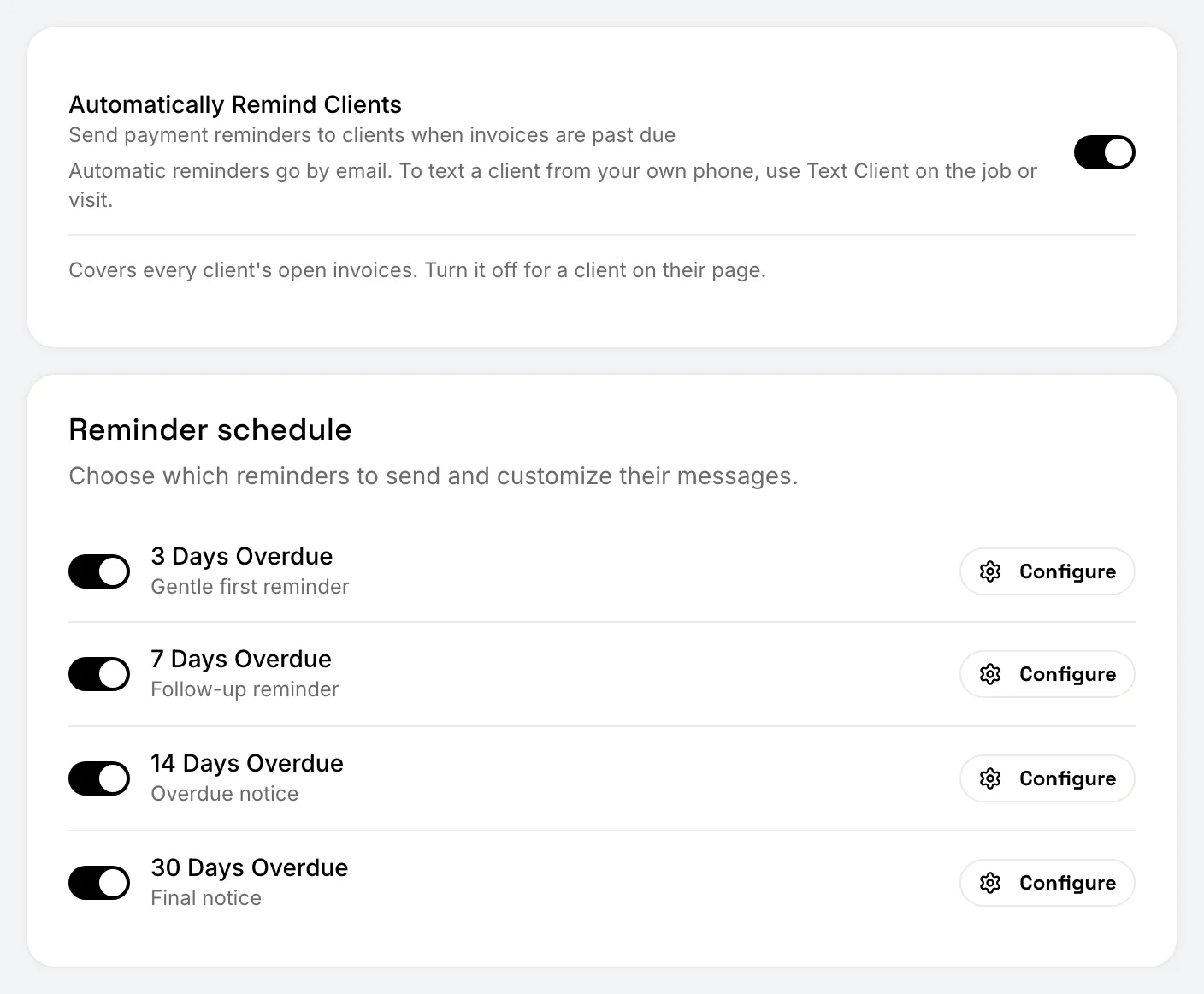
Under the reminder schedule, each step (3 Days Overdue, 7 Days Overdue, 14 Days Overdue, 30 Days Overdue) has its own switch. All four start on. To change a step’s message, choose Configure next to it on the web, or tap the arrow next to it on the phone.
If you chose only new invoices, Cover all open invoices widens it later.
Turn on estimate reminders
Estimate reminders have their own settings. Open an issued estimate and find its estimate reminders card. While they’re off, it says reminders are paused for your whole business: choose Open Reminder Settings. Turn on the switch there and pick which estimates to cover, as for invoices. Its steps are 3 Days After Sending, 7 Days After Sending and 14 Days After Sending.
For one invoice or estimate
An invoice that still owes and an issued estimate each have a reminders card on their page. Turn its switch off to stop reminders for that document only, or switch single steps on or off for it.
For one client
On the client’s page, turn off Automatic reminders. That stops invoice, estimate and appointment reminders for that client, whatever each document says.
Reminding by hand
On the web you can send a reminder right now: in the Invoices list, select invoices and choose Send Reminder. You can also send an invoice again with Resend in the invoice’s … (More actions) menu.
Whether or not client reminders are on, owners and admins get a daily alert about overdue invoices, if Invoice overdue is on in Settings › Notifications.
Still stuck? Contact us.