Ask us on the help form and we’ll reply by email.
Create and send an estimate
Build an estimate with line items and an optional deposit, issue it so it gets its number, then email it or text the link from your own phone.
Applies to: Owners, Admins, on the web and the phone app. Last checked 2026-10-20.
An estimate goes through three steps. You build it as a draft, you issue it, and you send it to the client. Owners and admins can create estimates.
On the web
- Open Estimates in the sidebar.
- Choose New Estimate, then New Estimate for a blank one, or From Template to start from one of your templates.
- Pick the client. If the estimate is for a job, pick it under Linked job (optional).
- Add your lines with Add Item, or pick from your saved items with Add from Saved.
- To ask for a deposit, fill in the Deposit card. Choose Percentage or Fixed amount.
- Choose Create Estimate. It’s saved as a draft.
On the phone
- Tap More, then New Estimate.
- Pick the client, or tap New Client.
- Pick one of the client’s open jobs, or tap Skip — No Job.
- Add your line items. Tap Use a Template to start from a template.
- On Review & Create, check the dates and terms and add a deposit if you want one.
- Tap Create Estimate.
Estimates need a connection on the phone. They aren’t saved for later when there’s no signal.
Issue it
A draft has no number yet, and you can still change everything on it. Issuing makes it official: it gets its number and its date is locked.
Open the estimate and choose Issue Estimate. Check the number, the issue date and the expiry date, then choose Issue Estimate. Leave Send to client after issuing on to go straight to sending.
A new estimate is good for 30 days, unless you set the Expires date yourself. To change the number of days, open Settings, then Automated Reminders, and set Estimates expire after (1 to 365 days). It applies to estimates from then on; estimates you already issued keep their date. If you haven’t changed the Expires date yourself, issuing counts the days from the day you issue.
Send it
Choose Send Estimate. You can:
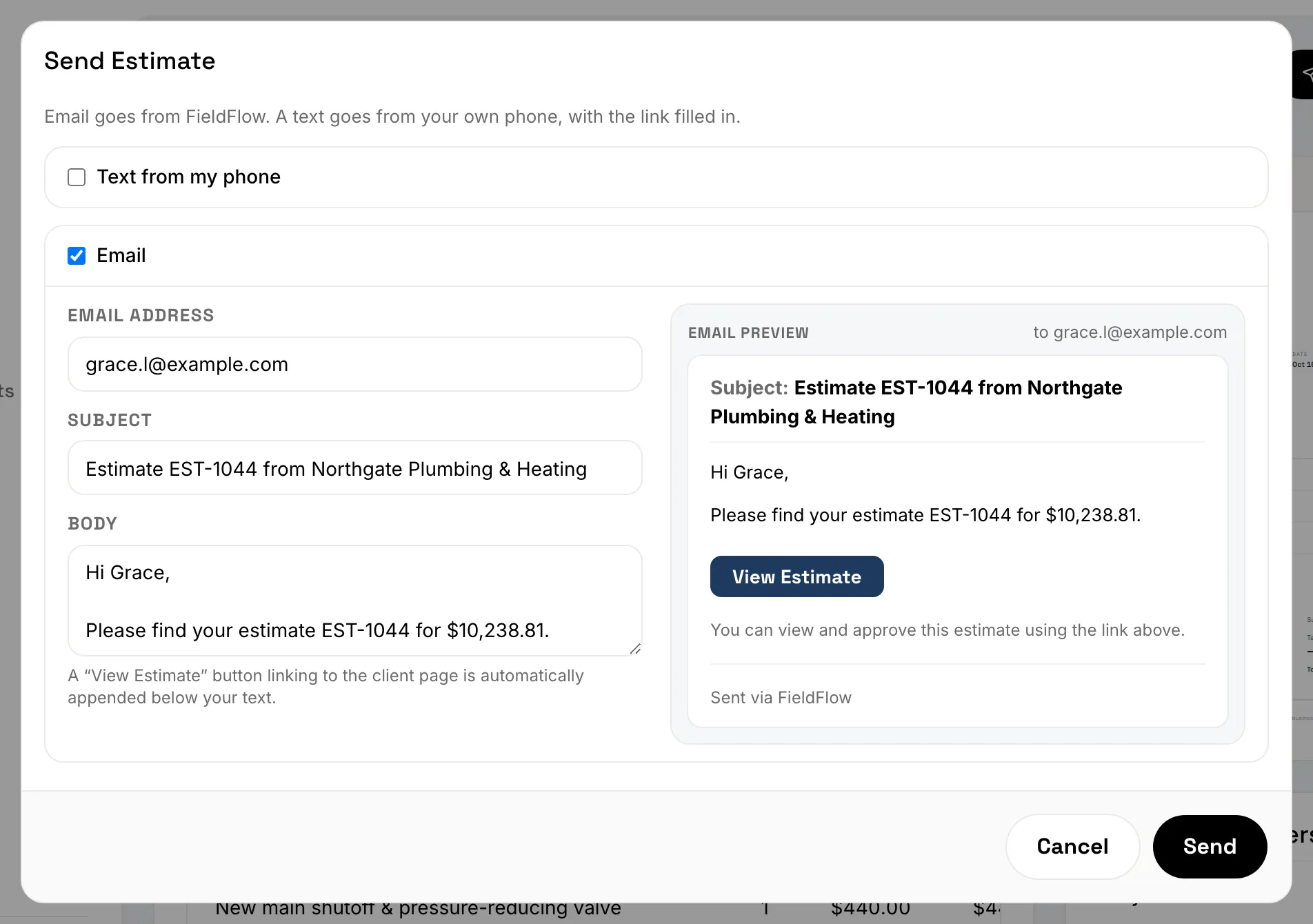
- Email it from FieldFlow. On the web you can change the subject and the message first. The email has a View Estimate button that opens the estimate, where the client can sign it or decline it.
- Text it from your phone with Text from my phone. Your phone’s Messages app opens with the link filled in, and the text goes from your own number. On a computer, you copy the text and send it from your phone.
To approve online, the client needs an email address on file. Their signing code goes by email.
If you handed the estimate over on paper or in person, choose Mark as Sent from the … (More actions) menu instead. On the phone, pick Paper Estimate in the send sheet.
Issued or Sent?
Issued and Sent are two different things. Issued means the estimate has its number and is locked. Whether it has gone to the client is a separate mark beside the status: Sent Oct 12, 2026 once you email it, text it or mark it as sent, or Not sent yet until then. On the web the mark is on the estimate’s page. Send Estimate turns into Resend Estimate after that, and reminders start only once it has been sent. Later the status shows as Approved or Declined, depending on the client’s answer.
When an estimate expires
An estimate is good all day on its Expires date, in your business’s time zone. The day after, it shows as Expired. The client can’t sign an expired estimate online, and you can’t send it or mark it as sent, but the client can still decline it. You can still approve it yourself, sign it with the client, or convert it. Reminders for it stop.
To reopen it, choose Extend expiry. FieldFlow suggests the later of today and the current expiry date, plus your Estimates expire after days. Pick any later date, then choose Extend. The estimate keeps its number, content and sent mark, and the client can sign it again from the same link. Nothing is sent. Owners and admins can extend, and so can crew set up for field sales, on their jobs.
On the morning after an estimate expires, owners and admins get one email listing the estimates that expired. Turn it off with Estimate expired in Settings › Notifications (email only).
To fix a mistake on an issued estimate before the client approves it, see Change a signed estimate.
Still stuck? Contact us.