Ask us on the help form and we’ll reply by email.
How clients approve an estimate
Clients sign an estimate online with a code sent to their email, or in person on your screen. See what signing creates, including the deposit invoice, and how to record an approval or a decline yourself.
Applies to: Owners, Admins, on the web and the phone app. Last checked 2026-10-20.
Once an estimate is issued and sent, and hasn’t expired, the client can approve it. They can sign it online from the link you sent, or sign on your screen in person. You can also record an approval or a decline yourself.
Signing online
The client opens the estimate from your email or text, with what approving commits them to at the top. They choose Approve & Sign, then sign in three steps:
- Confirm it’s you. They choose Email a Code to their address. FieldFlow sends a 6-digit code to the email you have on file for them.
- Enter the code, then Verify Code.
- Sign. They type their printed name, then draw their signature or type it, tick the consent box and choose Sign and Accept This Estimate.
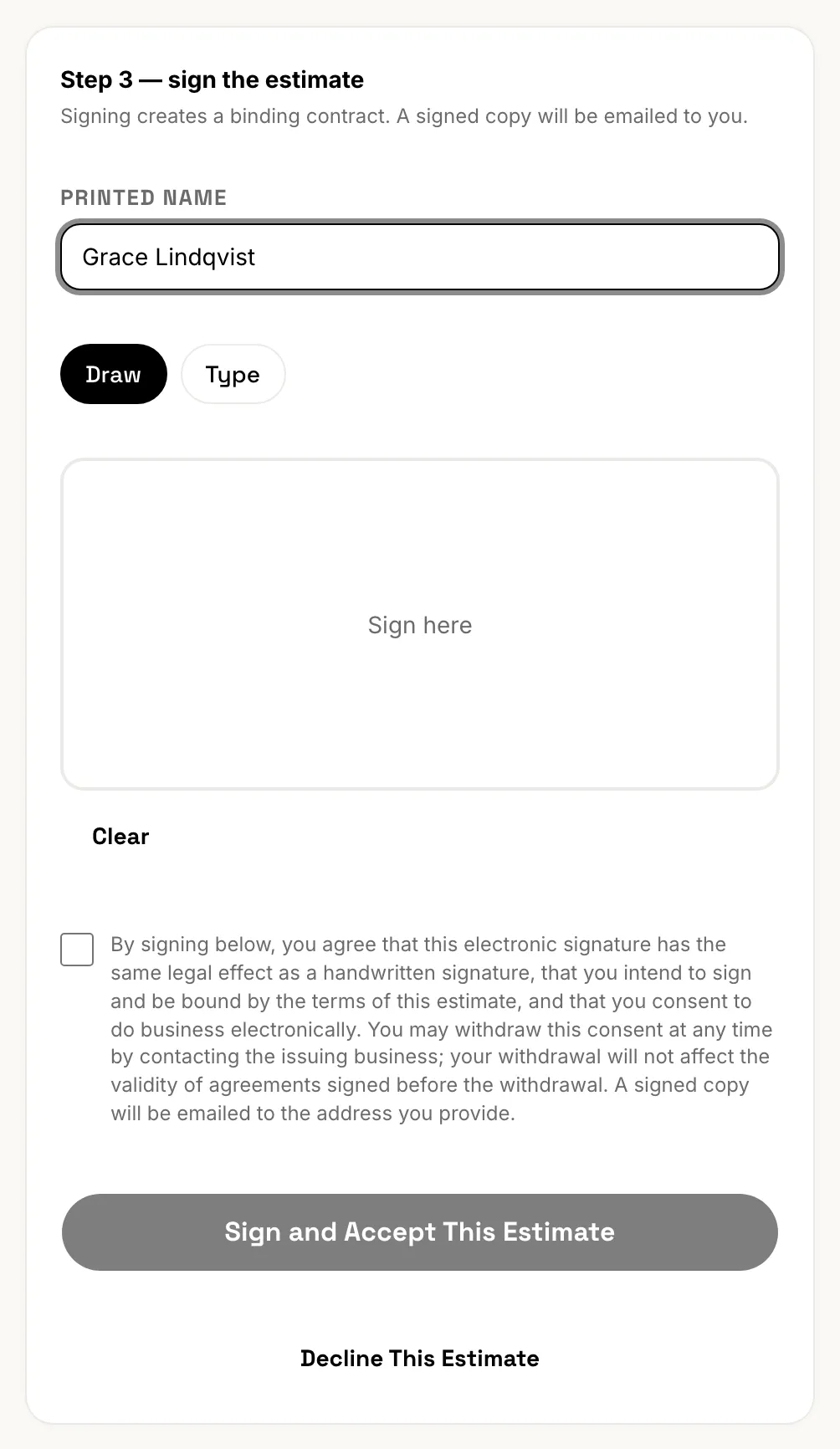
Signing online needs an email address on file. If the client has none, the page asks them to have you add one. Add it on the client’s page, then they can open the link again.
The client can also choose Decline This Estimate, beside Approve & Sign or from the signing step. Declining needs no code: anyone with the link can decline, and a reason is optional. The estimate’s history shows it as declined by Client (via link). The declined page tells the client to ask you to reopen it. To reopen a declined estimate, choose Revert to Draft from the … (More actions) menu, then issue it again.
An estimate that has expired can’t be signed online, though the client can still decline it. Choose Extend expiry on the estimate and the same link works again. See Create and send an estimate for how expiry works.
On the web: signing in person
With the client next to you, open the estimate and choose Client Signature from the … (More actions) menu. Enter their printed name and email, have them sign in the box, tick the consent box, then choose Sign and Accept This Estimate.
On the phone: signing in person
Open the estimate, tap … (More actions), then Client Signature. Enter the client’s printed name and email, hand them the phone to sign, tick the consent box, then tap Confirm Signature.
What signing does
- The estimate shows as Approved. It can’t be edited or signed again.
- A signed PDF is emailed to the client and to your business email.
- If the estimate asks for a deposit, FieldFlow creates a deposit invoice for that amount, due on receipt. Nothing is sent to the client. After signing online, the client’s page offers Pay deposit, which opens that invoice so they can pay it right away. You can also send the deposit invoice yourself from Invoices.
- You get a notification that the estimate was approved, if Estimate approved is on in Settings › Notifications.
Recording it yourself
From the … (More actions) menu on an issued estimate:
- Mark Approved without Signature marks it approved, for example after the client said yes on the phone. No signature is stored and no deposit invoice is created.
- Decline Estimate marks it declined. Confirm with Mark Declined.
A crew member set up for field sales can also take the client’s signature, or a verbal approval with a note, in the crew app. Both create the deposit invoice the same way.
Next: turn the approved estimate into an invoice. See From estimate to invoice and job.
Still stuck? Contact us.