Ask us on the help form and we’ll reply by email.
Connect Stripe to take online payments
Link a Stripe account from Settings so clients can pay invoices online, and see how setup, status and disconnecting work. Only the owner can do this.
Applies to: Owners, on the web and the phone app. Last checked 2026-10-17.
Connecting a Stripe account lets your clients pay invoices online. Money goes to your own Stripe account. FieldFlow takes a small platform fee on each online payment, and Stripe charges its own processing fee. Both fees are listed on the pricing page.
Before you start
Only the owner of the business can connect or disconnect Stripe. Admins don’t see the Payments settings. Have your business and bank details ready, since Stripe asks for them during setup.
On the web
- Open Settings, then Payments.
- In the Stripe account card, choose Set Up Stripe.
- Complete Stripe’s onboarding in the tab that opens.
- Come back to FieldFlow. The card updates on its own. If it hasn’t, choose Check Connection Status.
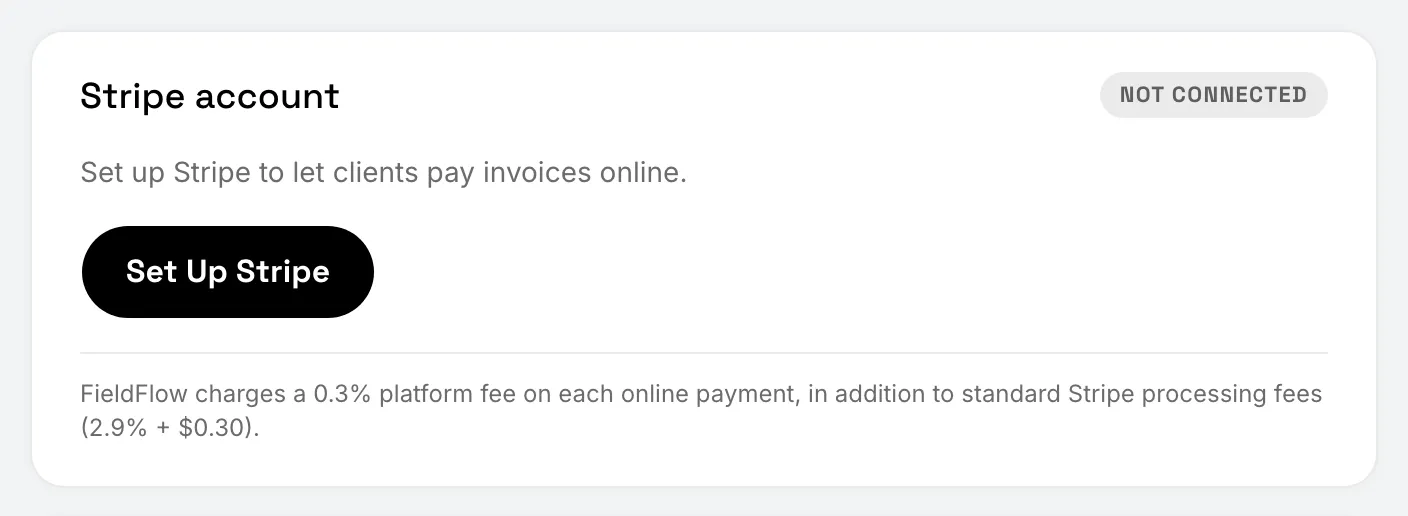
If you leave Stripe’s onboarding early, the card shows Setup in Progress. Choose Reopen Stripe Setup to continue. If the setup link has expired, the card says so. Choose Continue Stripe Setup to pick up where you left off.
On the phone
- Tap More, then Settings, then Payments.
- Under Stripe account, tap Set Up Stripe. Stripe’s onboarding opens in the browser.
- Finish it, then return to the app.
The phone shows Not Connected until Stripe has confirmed your account.
Once connected
The card shows Connected, and you can open your Stripe Dashboard from it with Open Stripe Dashboard.
To disconnect, choose Disconnect Stripe on the same card and confirm. Clients can’t pay invoices online until you connect again. Payments you’ve already recorded are not affected.
Still stuck? Contact us.